01
Select the real content
Use an existing Heading, Paragraph, Button or layout block. Blocks inside a pattern can have their own assignments.
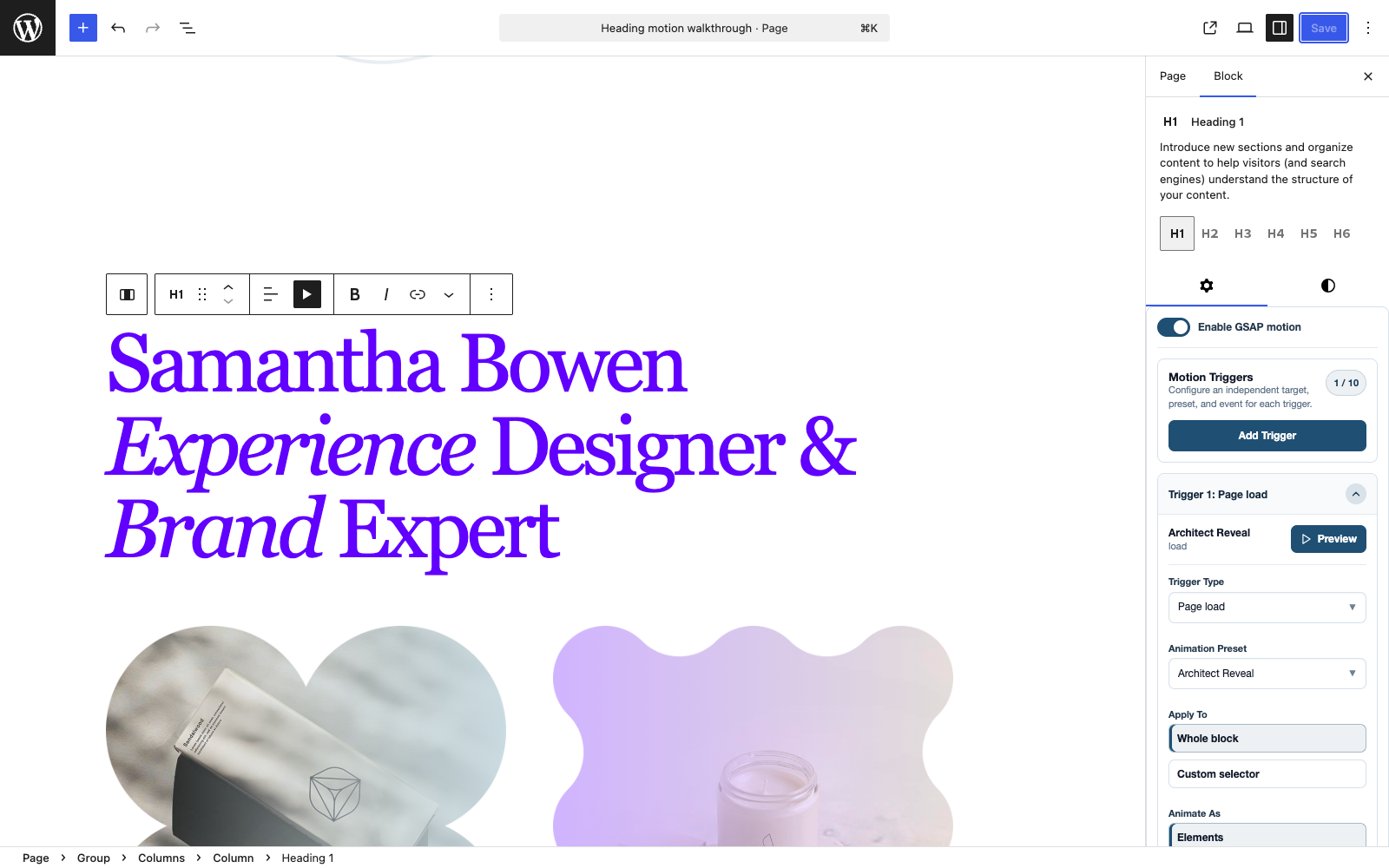
Gutenberg Motion / Built for your existing content
headingswordsbuttonsgroups
Use the content and layout you already have. Start with an editable preset or compose a timeline, choose the trigger and preview the result where you build.
01 / Where it lives
Select a supported block. Motion opens in the block inspector, alongside the controls you already know.
Use an existing Heading, Paragraph, Button or layout block. Blocks inside a pattern can have their own assignments.
Enable GSAP Motion, select a compatible preset and set when it runs. Preview the assignment without leaving your editor.

02 / Contextual targeting
A heading, list and group are different structures. The available targets follow the block you selected.
Explore supported targets ↗Keep the original content intact. A whole-field assignment moves the selected text; inline targets narrow the selection where supported.
Choose Elements, Lines, Words or Characters for compatible text. Keep the original field intact while controlling how its text participates.

The choices follow your content
Whole text, lines, words or characters.
A collection or an individual item.
One action or its existing group.
Media targets and image collections.
The container or its direct children.
Supported links, items and submenus.
03 / Reusable motion
73 built-in presets, plus 178 additional presets to browse and import. Find a starting point, preview it and make it your own.
Browse the Preset Library ↗Browse by content and motion type. The library separates the motion you create from the places you apply it.
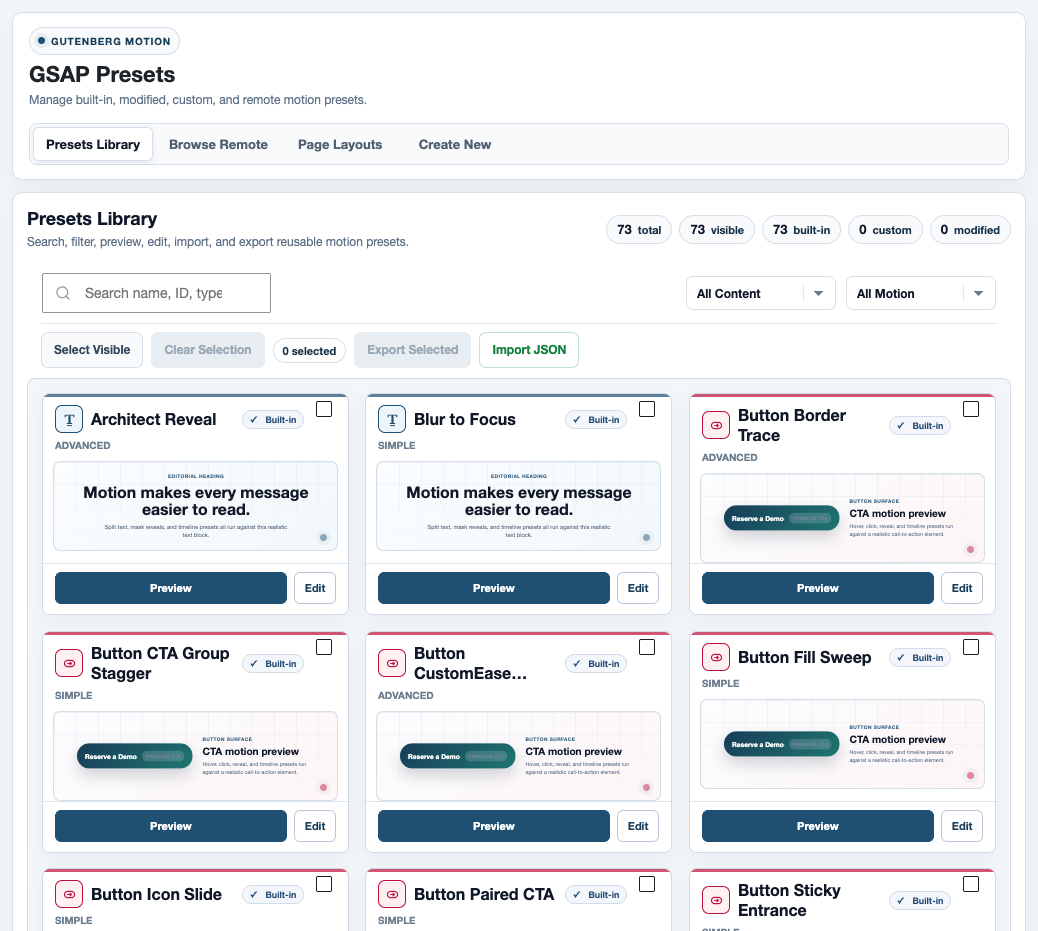
Search by name or purpose to find relevant motion without looking through every preset.

Replay the preset on content-specific sample data. Then judge its assignment on the actual content in your editor.

Built-in presets are editable. Save a variation, update a shared preset or restore its original settings.

04 / Timeline composition
Choose the structure that fits the job. Set properties, timing and easing, then replay the result while you build.
Explore timeline creation ↗Define one focused animation with starting and ending properties, duration and easing.
Give a supported parent and its children separate phases. Introduce a container, then sequence its contents.

Arrange up to ten steps with independent properties, timing, easing and positions. Overlap steps or leave space between them.

Adjust duration, delay, easing, repeat and yoyo for a step. Use its timeline position to control when it starts relative to the rest of the sequence.

05 / Trigger behavior
The preset defines the animation. Each assignment chooses its target and the event that starts or controls it.
Explore trigger settings ↗Choose Page load, Scroll into view, Viewport leave, Hover, Click or Focus. Compatible choices follow the preset and target.
Scroll scrub links progress to scrolling. Pointer controls follow the element or viewport. Custom event listens for a named event from your site or an integration.

There are ten trigger types and up to ten trigger records. Each placement keeps its own event settings without duplicating the preset.

06 / Editor to frontend
Library previews help you choose. Editor previews show the assignment on your own content. Save and check the published page to judge scrolling and interactions in context.
View a live page example ↗Check the preset, target and trigger on the content you are editing. Refine the timing before publishing.
Check the actual published result after saving. A screenshot shows the finished state; open a live page to experience motion.

07 / Build once, assign again
Keep the animation. Change its compatible target and trigger. Update the shared preset to change every use, or save a separate variation when one placement needs a different result.
08 / Complete page proof
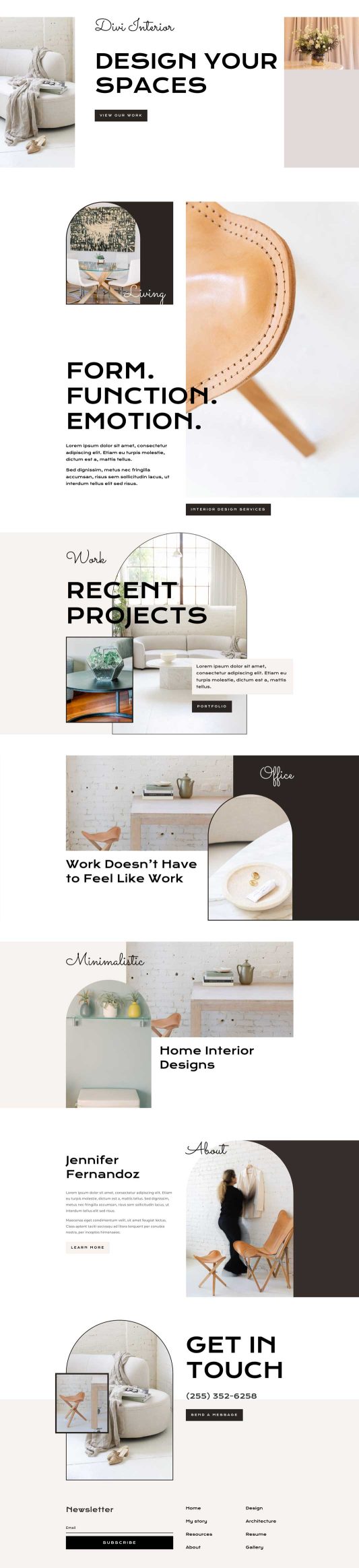
Explore 20 layouts built for your editor. Import the native page and its required presets, then change the content and inspect its assignments.
Browse every page layout ↗A portfolio page with editable text, imagery and motion assignments. Open the live page to see the full composition.

A service-business page you can adapt to a new project. Keep the native structure and refine the motion as the content changes.
09 / A separate navigation system
Page transitions have their own presets, route rules and preview. They use native same-site navigation, separately from GSAP motion inside the page.
Explore page transitions ↗Start with a document-level transition preset. Keep page navigation separate from your reusable element animations.

Set defaults or ordered rules for selected pages and routes. Use exceptions when a page should behave differently.

Replay the exit and entry effect, then verify your chosen routes on the published site. Unsupported browsers continue with normal navigation.

Your next step
Open a private, one-hour workspace. Edit the example page, select a preset and preview its assignment. Shared presets and site settings stay read-only in the trial.
You have seen the workflow
Reusable presets, visual timelines and contextual controls. Choose Solo for one site or Agency for client work, with yearly or lifetime access.