A heading animation should make a message easier to notice without making the message harder to read. Gutenberg Motion adds reusable GSAP motion to the Heading block you already have. You keep its text, heading level, typography and place in the document. There is no replacement heading block to maintain.
This tutorial starts with one complete heading on Page load, then explains when to use lines, words or characters instead. The screenshots show the same Creative Director example in the native editor and on the frontend. Use a copy of your own page to follow along; the example layout is not a requirement.
Before you animate the heading
Use WordPress 6.5 or newer and PHP 8.0 or newer, with Gutenberg Motion installed and activated. The plugin uses the WordPress block editor; a separate Gutenberg plugin installation is not required. For licensed downloads and library access, complete the activation steps in the installation guide.
Open a test page and select the actual Heading in List View. If the heading belongs to a Group, Columns layout or pattern, selecting its parent gives you a different motion placement. Confirm the selected block before looking for controls.
Set the copy and typography first
Keep the correct heading level for the page. A large visual title is not automatically an H1, and adding motion is not a reason to change its semantics. Set the text, font, line height and responsive width using normal WordPress controls. Check that the longest word fits on a narrow screen.
For line animation, these choices are especially important: a line is determined by the browser’s actual wrapping, not by a fixed number of words. A late-loading font or a narrower Column can change which words belong to each line. Whole-heading animation is the simpler first test because it does not depend on splitting.
Add one entrance to the whole heading
- Select the Heading block, then click Gutenberg Motion in its toolbar. The shortcut reveals motion controls in the Block inspector rather than placing a panel over the text.
- Turn on Enable GSAP motion. Open the trigger record and choose Architect Reveal under Animation Preset.
- Keep Apply To: Whole block and Animate As: Elements. The target is the heading, not each character inside it.
- Choose Trigger Type: Page load. Leave extra looping and sequencing disabled for this first entrance.
- Use the trigger’s Preview and watch through the final frame. Check that the heading returns to a readable, stable position.
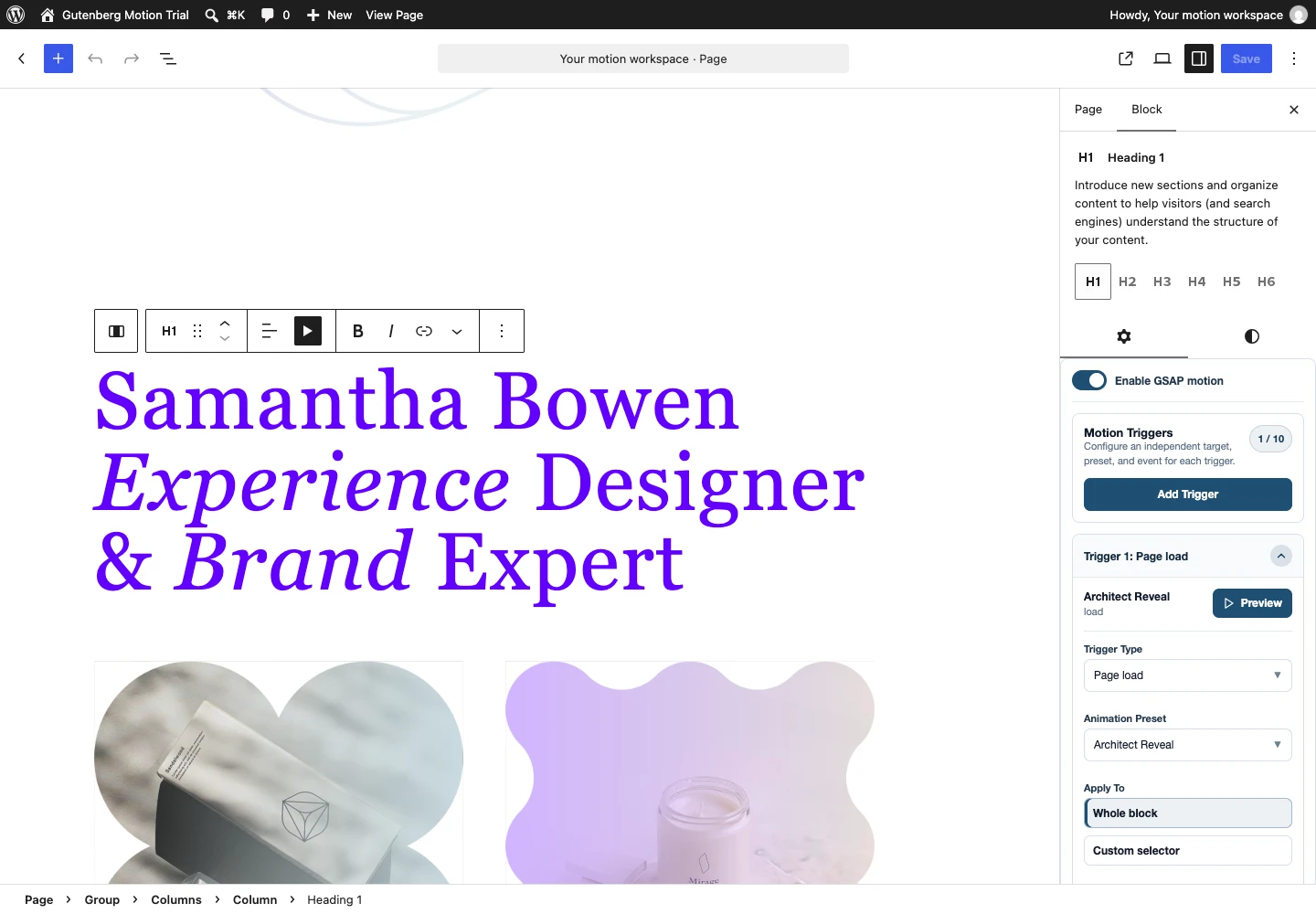
Page load is appropriate for a short heading visible when the page opens. It does not mean the animation will be synchronized to every movement in the browser. It starts when the page’s motion runtime is ready. A heading far below the first viewport usually needs Scroll into view instead.
Check the finish, not only the entrance
The heading must not finish with zero opacity, an unintended offset or a transform that changes its readable alignment. Watch the final second after the movement stops. An entrance can look attractive midway through playback while leaving content in the wrong final state.
If both the parent Group and its heading fade in, their opacity can combine. If both move upward, their transforms can make the total movement larger than expected. Disable one placement while testing so you can identify which layer owns the effect. You do not need an entrance on every ancestor to demonstrate that the plugin supports those layers.
Choose whole text, lines, words or characters
Once the complete heading works, decide whether its internal reading rhythm would benefit from splitting. Use compatible text presets and the Animate As choices available for that placement. Splitting is a targeting decision; it is not an instruction to create several Heading blocks.
| Animate As | Useful for | What to check |
|---|---|---|
| Elements | A complete heading entering as one unit. | Its final alignment, opacity and relationship to parent motion. |
| Lines | A multi-line message unfolding in reading order. | Actual wrapping after fonts load and at every breakpoint. |
| Words | A short phrase with deliberate emphasis or a restrained wave. | Word spacing, order and total time before the full message is readable. |
| Characters | A compact display title, not a long body of essential copy. | Legibility, motion intensity and the cumulative stagger delay. |
Let stagger serve the sentence
Stagger inside a text preset offsets the start of its split targets. If a heading has many characters, even a small per-character interval can make the last character arrive late. Judge the whole sentence rather than the first few letters. Shorten the delay, choose words instead, or keep the heading whole when the reveal slows reading.
Placement-level selected-target sequencing is a separate concern: it controls a collection such as several chosen headings or direct child blocks. Do not add it simply to make one heading’s letters stagger. See the stagger ownership guide for the two timing layers.
Animate only part of a heading when it has real markup
A heading can contain links or emphasis. Compatible contextual options target those actual inline elements. An option does not create content that is absent from the field: a link target needs a link, and emphasis needs the appropriate markup.
If the entire sentence should enter together, Whole block remains the better choice. If only one linked phrase should respond to an interaction, target that phrase and check keyboard focus as well as pointer hover. Do not animate decorative fragments at the expense of the link’s clear purpose.
Use scroll when the heading appears later
Switch Trigger Type to Scroll into view for a lower section heading. Begin with its Enter event, then inspect Start and End in the scroll settings. A start such as top 80% describes the target’s top meeting a point 80% down the viewport; it is not a delay measured in seconds.
Apply To still defines what moves. Trigger On defines the supported source used to detect the event. A collection can animate several items while using one block boundary to start them, or use each target where the controls support it. For a single heading, start with the block as the source.
Scroll down from above the heading, continue past it, then scroll back. Decide whether the entrance should run once or respond again. Use the controls that match the chosen event rather than combining loop, reverse and repeat speculatively. Scroll scrub is different: it maps progress to scrolling and needs a reversible sequence.
Save and verify the visitor’s page
- Save or update the page. Reload the editor and select the same Heading to confirm its preset and trigger are still saved there.
- Open the published URL in another tab. Reload for a Page load test, or approach the heading from above for a scroll test.
- Check that only the intended target moves, and that its final state matches the page design.
- Repeat at a mobile width, with the real font loaded. Check that the heading still fits and split lines match the new wrapping.
- Test reduced motion and keyboard navigation. Essential text and links must remain available without depending on the effect.

If the heading behaves differently than expected
| Symptom | Check first | Useful next step |
|---|---|---|
| No motion control | Whether the Heading itself is selected. | Use List View and the block toolbar shortcut; inspect the parent separately. |
| Preset not found | Whether that preset exists in the local library. | Import the dependency, then choose the valid preset again. |
| Text never becomes readable | The preset’s final opacity and transforms; parent motion. | Test the heading alone using a known entrance preset. |
| Words or lines split differently | Fonts, text width and responsive layout. | Preview again after layout settles; compare Elements with Lines. |
| Editor works, frontend does not | Saved settings and page or script optimization. | Save, clear the relevant cache, then temporarily isolate script delay on the test page. |
Questions before you reuse it
Do I have to replace the Heading block?
No. Motion attaches to the existing supported block. WordPress continues to own its content and normal styling. Avoid replacing the block just to work around a targeting issue; first check which layer is selected.
Can the same preset run on load and on scroll?
Yes, in separate compatible placements. A hero heading can use Page load while a later heading references the same preset with Scroll into view. Editing their shared preset can affect both, so duplicate the preset when their visual design should diverge.
Why does the library preview look different from my heading?
The library uses sample content to demonstrate a reusable definition. Your target has its own text length, font, width and hierarchy. The trigger preview on the actual block, followed by a frontend check, is the relevant publishing test.
For the full workflow, continue with the complete Gutenberg Motion guide. Explore compatible designs in the Preset Library or inspect a native motion-ready layout.