A reusable animation and a trigger are related, but they are not the same definition. The animation describes the visual sequence. Its placement chooses the content, event source and playback conditions. Keeping those decisions separate lets one Elementor Motion preset work on several compatible parts of a page.
This guide explains when to choose Simple, Staged or Advanced Timeline, how to sequence container children, and what to inspect when several motion layers interact. The goal is a deliberate result, not the largest possible number of effects.
Separate the visual design from the page interaction
A preset stores the motion design: animated properties, easing, duration and structure. A field, widget or container placement references that definition. Its Apply To setting determines the target and its trigger determines when that target runs.
The same entrance can run on load for a hero and on viewport entry for a later section. You do not need two preset copies solely to change the event. Conversely, different final transforms or a different visual sequence deserve separate preset designs rather than an accumulation of trigger overrides.
Know which layer owns the record
| Layer | Typical use | Where to begin |
|---|---|---|
| Content field | A title, rich text, image or button response. | The supported motion control beside that field. |
| Whole widget | A card or complete widget moving as one unit. | The widget’s Elementor Motion section in Advanced. |
| Container | A composition entering together. | The Container’s motion section in Layout. |
| Container children | Several immediate cards or elements entering in order. | The parent placement’s supported Direct children target and playback. |
Choose the simplest structure that expresses the design
Simple Motion is useful for one focused transition between states. It can still include easing and compatible stagger. Staged Motion coordinates parent and child phases. Advanced Timeline creates a multi-step reusable sequence with deliberate ordering and overlap.
Do not choose Advanced Timeline only because a page has many targets. One Simple preset can be reused across a collection. Use a timeline when the animation itself needs several coordinated steps, such as an entrance followed by a restrained settling movement.
Create a timeline you can understand at a glance
- Open the Preset Library and choose Create New.
- Select the compatible content type and Advanced Timeline. Give the preset a name that describes its visual purpose.
- Define the first step’s properties, duration and easing. Make its initial and final states explicit.
- Add the next step and choose whether it follows or overlaps the first. Adjust its position deliberately rather than stacking unrelated delays.
- Replay the complete preview after each change. Check the handoff between steps and the final readable state.
- Save, assign it to real Elementor content and preview the actual placement.
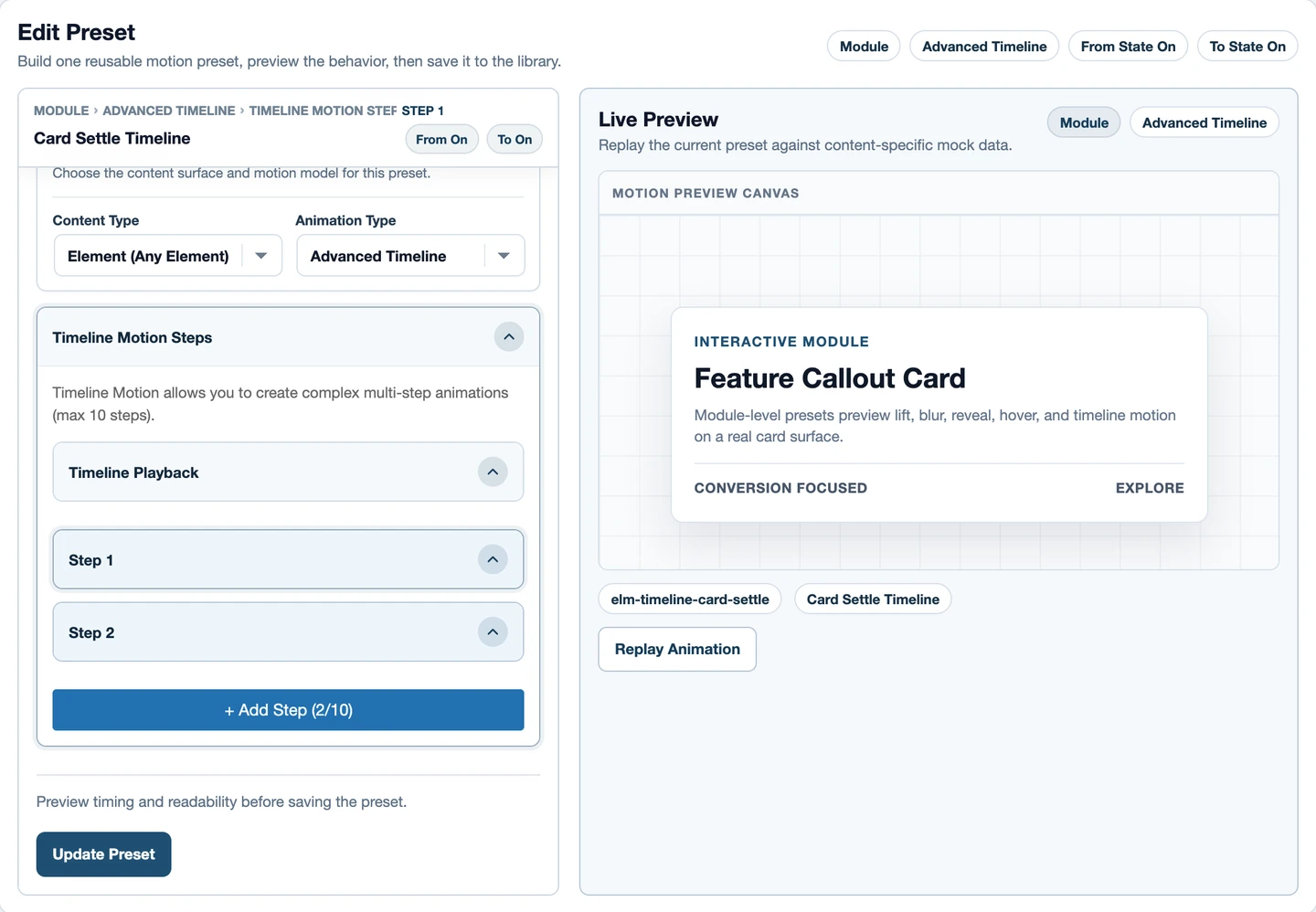
Timing, ease and overlap do different jobs
Duration controls how long a step runs. Ease controls its acceleration. Position controls where that step begins within the sequence. Overlap lets one step begin while another is still running. These choices combine, so change one at a time when a transition feels abrupt.
CustomEase changes the pace of a supported property animation; its path is not a route for an SVG or a moving object. Enter a valid curve in the Custom Path field and replay the full sequence. A strong ease on one isolated step may not join smoothly to the next.
Sequence the actual direct children of a Container
A Container’s immediate children may be widgets, nested containers or a mixture. Direct children does not mean every heading, image and button at every depth. If an outer Container contains one inner Container, its direct-child target may resolve only that inner container.
A three-card entrance
- Inspect the Structure panel and select the Container whose immediate children are the three cards.
- Enable its motion and choose a compatible entrance preset.
- Select Direct children, keeping a common event source if the cards should begin as one group.
- Enable selected-target sequencing where supported and begin with a modest offset.
- Watch the complete group, particularly the last card. Then test the wrapped or stacked mobile layout.
- Save and check the frontend before adding independent motion to the card contents.
If each card already owns a field or widget entrance, decide which layer should own the main reveal. Parent opacity affects everything inside it; child transforms happen within the moving parent. Those effects can combine intentionally, but duplicated entrances often create a delayed or exaggerated result.
Keep preset stagger and placement sequencing intentional
Preset stagger belongs to the reusable design. Placement sequencing distributes that design across this particular selection. For example, a text preset can reveal words in order, while a container placement offsets three card instances. Applying both creates two timing layers.
| Setting | Ownership | Question it answers |
|---|---|---|
| Preset stagger | Animation definition. | How do the design’s compatible internal targets start? |
| Selected-target sequencing | This field or container placement. | How do these resolved targets begin relative to each other? |
| Trigger delay | This event’s playback. | When does playback begin after the event? |
| Timeline position | The sequence’s step. | Where does this step begin in the reusable timeline? |
Do not add a second sequence without checking the first
A Staged preset can already coordinate parent and children. Adding selected-target sequencing to a placement using that preset can make the overall sequence much longer. Preview the last child and the completed group before treating the extra delay as an improvement.
Likewise, repeating the timeline is different from repeating one step. Use the supported control at the intended level, then observe the boundary between cycles. Yoyo reverses playback; it does not automatically make a hidden final state suitable for ordinary reading content.
Choose ordinary scroll playback or scrub deliberately
Scroll into view starts a timed animation at a viewport boundary. Scroll scrub links progress to scrolling. A sequence that works as a one-time entrance may not work well when the visitor stops halfway or scrolls backward.
Read Start and End as geometry
Start and End compare positions on the trigger source with positions in the viewport. top 80% is a boundary relationship, not an 80% animation progress value. Apply To still defines the moving targets, while Trigger On defines the supported source used for this relationship.
Set boundaries on real content after fonts and images settle. Long sections, stacked cards and changing viewport height affect the useful scroll range. Temporarily enable markers when available to inspect the boundaries, then turn them off before publishing.
Pin and scrub need extra layout checks
Pinning changes how a section occupies the scrolling page. It can interact with parent containers and responsive heights. Test mobile, keyboard navigation and content after the pinned region; do not add pinning to a normal card entrance just because the control is available.
For a scrubbed sequence, inspect its start, middle, end and backward progress. Keep essential content understandable at every point. GSAP’s ScrollTrigger documentation explains the underlying boundary and progress model; the product controls expose the supported subset of that model.
Multiple triggers need clear ownership too
A placement can contain several trigger records referencing reusable presets. This is useful when an entrance and a later interaction serve different purposes. It is not an instruction to attach several simultaneous entrances to the same transform and opacity.
Entrance plus button feedback
A card may enter when its parent collection reaches the viewport. A button inside it may have a later hover or focus response. Keep that interaction restrained, preserve link behavior and test it when the entrance has completed. On touch devices, the action must stay understandable without hover.
Custom events require an actual event source. Selecting Custom event in a trigger does not cause another plugin to dispatch it. Do not advertise a commerce or form integration unless its event contract is implemented and tested.
Verify definition, placement and frontend in that order
- Preset: replay the complete sequence and inspect final values.
- Placement: confirm the selected field, widget or container, target collection and event source.
- Saved editor: update, reload and reselect the same element.
- Frontend: replay the real event, including reverse scroll or pointer exit where relevant.
- Responsive behavior: check wrapping, target order, reduced motion, focus and the last item’s arrival.
If behavior differs, start with one target and one trigger. Disable competing ancestor motion, then isolate page caching and script delay on the test page. Rebuild complexity only after the small configuration works. A library sample is not a substitute for checking a saved page.
Use the sequence across a real page
Reuse the same compatible definition for several placements, but choose their events independently. Keep separate presets when their visual purpose differs. Import remote presets into the local library before depending on them, and inspect required preset dependencies when importing a native page layout.
Continue with the complete Elementor Motion guide, the Heading tutorial, or the timeline control reference. Browse complete layouts to inspect actual container nesting before adapting a design.