You can animate an existing Elementor 4 heading without rebuilding it in a special animation widget. Elementor Motion places GSAP controls beside supported content fields, so the Title remains an Elementor field and the heading keeps its normal styling.
This guide uses a Heading on the Creative Director page, Architect Reveal and Page load. It starts with the complete title, then covers split text, inline targeting and scroll. The editor and frontend screenshots belong to the same native example, rather than two unrelated pages.
Prepare the page and select the actual heading
Elementor Motion supports Elementor 4, not Elementor 3 or an assumed future major version. Use WordPress 6.5 or newer and PHP 8.0 or newer. Install the product ZIP, activate it and follow the license and installation guide before opening a test page.
Select the Heading in Elementor’s Structure or Navigator panel. Confirm the Title in Content and its HTML tag. Leave font, weight, line height, alignment and responsive sizing in Elementor’s ordinary controls. Motion should add emphasis to a finished heading, not hide a typography problem.
Know whether you are editing the field or the widget
The Enable GSAP motion control immediately after Title is the field-level placement. It applies to the supported title content. Whole-widget motion is a separate placement in the widget’s motion controls; a surrounding Container is another layer again.
This matters even when the widget currently contains only one heading. A widget wrapper may also carry spacing, background or decorative structure. A field animation should not accidentally turn those into text targets. Select the smallest layer that owns the movement you intend.
Attach a preset to the Title field
- In the Heading’s Content controls, find Enable GSAP motion directly below Title and enable it.
- Choose Architect Reveal under Animation Preset.
- Set Apply To: Whole field and keep Animate As: Elements. This first test moves the complete heading.
- Choose Trigger Type: Page load. Keep extra loops and selected-target sequencing off initially.
- Use Preview from this trigger record and watch its start, movement and completed state.
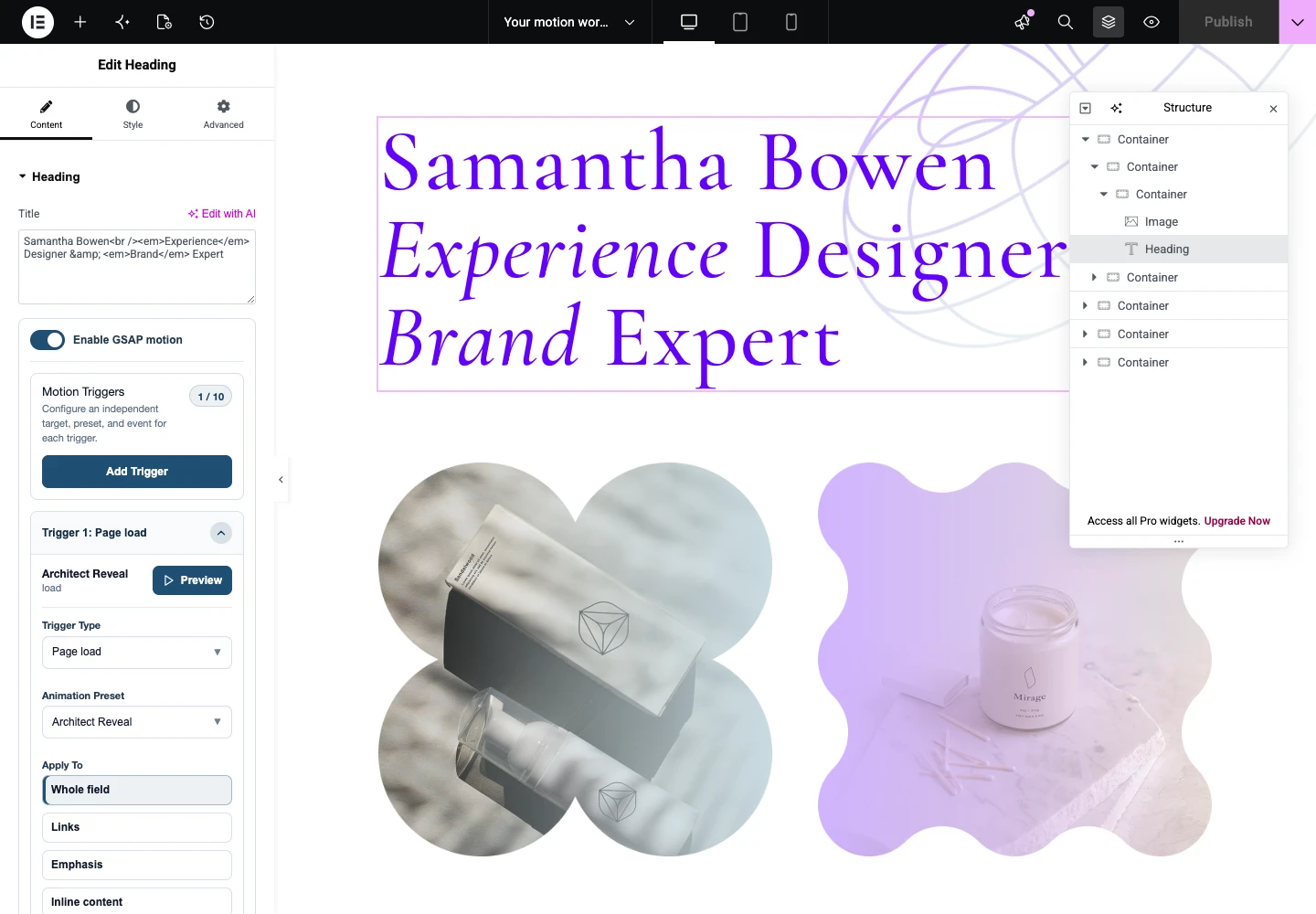
If the heading is part of an imported motion-ready layout, first inspect the existing records. Do not add a second entrance merely because the content is already moving. The title, widget and container can each own motion, and a saved page may legitimately use only one of them for the entrance.
A successful preview includes a stable final state
The heading should finish in its designed position, at its intended opacity, without leaving essential copy hidden. Check the moment after motion stops. An attractive mid-animation frame is not enough if the final transform pushes the title out of its container.
Preview from the selected trigger uses the actual field target. Preset Library preview uses a reusable sample instead. Both are useful, but only the field preview tells you how the effect fits this title’s font, width and content.
Choose the right text granularity
Use Animate As to choose Elements, Lines, Words or Characters where the selected text placement and preset support them. Whole field under Apply To identifies the content; Animate As determines whether that content is treated as one element or split for motion.
| Choice | Good starting use | Avoid |
|---|---|---|
| Elements | A clear, restrained entrance for the complete title. | Adding unnecessary letter effects when the message already reads well. |
| Lines | A long title that naturally wraps into a few lines. | Assuming desktop line breaks stay identical on mobile. |
| Words | A compact phrase with a deliberate reading rhythm. | A sequence so slow that visitors wait to understand the sentence. |
| Characters | A short display title with controlled stagger. | Animating an entire long paragraph one letter at a time. |
Recheck splitting after fonts and responsive edits
A line is measured from rendered text. Changing the font, container width, heading size or actual copy can change the split. Preview after the real font loads. Check desktop and mobile independently, including long words and linked phrases.
Stagger belongs to the animation design when it controls letters or words inside that design. Selected-target playback is useful for a collection of resolved targets, such as several container children. Combining both can extend the total sequence, so keep their purposes separate. The timeline and sequencing guide explains that distinction.
Use inline targets only when the content contains them
Compatible field options can target links, emphasis or other supported inline content. These options refer to real markup; they do not invent a linked word or an emphasized phrase. If the whole heading is meant to enter together, keep Whole field selected.
For a Text Editor widget, semantic choices can go deeper because the field may contain headings, paragraphs and lists. A Title field is not a general rich-text document. The controls should follow that difference, and the target you choose should match the content you have.
Choose an event that fits the title’s position
Use Page load for a first-viewport heading. Use Scroll into view when a lower section title should wait until the visitor reaches it. Apply To answers what moves; Trigger On answers which supported element supplies the event boundary. Those are not interchangeable settings.
A practical Scroll into view test
- Change Trigger Type from Page load to Scroll into view and begin with Enter.
- Check Start and End. A start such as top 80% means the target’s top reaches a point 80% down the viewport, not a timer delay.
- Keep the field or widget’s supported root source for the first test. Add target-specific event sourcing only for a real collection use case.
- Save, approach the heading from above on the frontend, then continue past it and return.
- Decide deliberately whether to run once, replay or reverse using the controls applicable to this trigger.
Scroll scrub follows scroll progress rather than playing an ordinary entrance once. A scrubbed heading needs sensible intermediate and backward states. For normal reading content, begin with a simple entrance before introducing scroll-controlled progress.
Save and test the same page on the frontend
- Update the page, reload Elementor and select the same Heading. Confirm the Title placement still has the intended preset and trigger.
- Open the page’s public URL separately. Reload for Page load, or scroll toward the title for Scroll into view.
- Confirm that the title, not the entire page or editor controls, owns the movement.
- Check mobile wrapping, reduced motion and link focus. Essential text must not depend on repeated animation to remain visible.
- If you change the shared preset, repeat the check on other headings that reference it.

Find the first point that differs
| Problem | Likely check | Next action |
|---|---|---|
| Motion controls are absent | Editor version and selected supported field. | Confirm Elementor 4 and the actual element profile; do not assume every third-party widget exposes identical fields. |
| The whole card moves | Widget or Container placement instead of Title. | Inspect the field control directly below Title and disable the competing wrapper motion while testing. |
| Preset is unavailable | A missing local library dependency. | Import the preset and select its valid local entry. |
| The title is hidden or moves too far | Final preset values and combined ancestor transforms. | Test one entrance owner, then restore deliberate nested effects. |
| Only the published page differs | Saved data, caches, delayed scripts or layout changes. | Update, clear the relevant cache and isolate optimization on a test page. |
Common questions
Can I reuse this preset on another heading?
Yes. Choose the same compatible local preset on the other heading, then set that placement’s target and event. The second heading can use scroll while the first uses load. Make a separate preset when you want a different visual design rather than merely another event.
Will every Elementor 4 element use the Title field?
No. Elementor 4 includes different widget and atomic element structures. Follow the supported field and context for the actual selected element. This tutorial demonstrates the Heading configuration shown in the screenshot, not a promise that every third-party element uses the same internal fields.
Should I also animate the parent Container?
Only if it adds a separate, intentional layer of movement. One clear title entrance is often enough. A container effect can coordinate a group, but duplicating the same fade at several levels usually weakens the result.
Continue with the complete Elementor Motion guide, explore the Preset Library, or inspect motion-ready native layouts before adapting the workflow to a larger page.